What Is Telestration? Drawing on Match Video for Coaches
Last updated: October 2026.
Every coach has had the conversation. You pause the clip, point at the screen and say "see, there, he needed to be over there", and half the room is looking at the wrong player.
Telestration fixes that: instead of pointing, you draw.
Broadcasters have used telestration for years to break down big moments. It's just as useful when reviewing your own team's matches, particularly when you want to explain positioning, movement or defensive mistakes.
What Is Telestration in Sports?
Telestration is drawing on top of video. Arrows show where a player ran, or should have run. Rings pick out the player you're talking about. Shaded zones show space left open. A line marks the defensive shape. A few words of text say what the coach wants remembered.
You'll have seen it on TV. When a pundit freezes a replay and sketches out how a try was created or a goal was conceded, that's telestration. The name comes from the telestrator, the device broadcasters originally used to draw over a live picture.
For coaches and analysts, it's the same idea applied to your own footage: your players, your match, your patterns.
The Benefits of Telestration
Players see it instead of hearing about it
It's often easier to show a player the run they should have made than to explain it verbally. Pause the footage, draw the run with an arrow and they can immediately see the space you wanted them to attack. There's no ambiguity about which player you mean, or which space you're talking about.
Shorter, sharper review sessions
Without drawings, a lot of review time goes on orienting the room: "the winger, no, our winger, the one on the far side". A ring and an arrow do that instantly, which leaves more time for the coaching point itself.
It explains the "why", not just the "what"
Stats tell you that you conceded four line breaks down the left. Raw video shows you each one. Telestration shows why: the gap between the two defenders, the late drift, the forward who stayed on the ground.
Clips that travel without you
A drawn clip carries the explanation with it. Send it to a player who missed the session, a parent coach running the second team, or a player doing individual work, and the message is on the screen, not in your head.
Consistent coaching language
If the coaching staff use the same colours and markings, players start recognising what they're looking at. An arrow might always show a movement, while a shaded area highlights space the team needs to protect. It also makes it easier for assistant coaches and analysts to communicate the same message during review sessions.
Better opposition analysis
Telestration isn't only for your own mistakes. Drawing an opponent's set-piece patterns, pressing triggers or exit routes gives players a clear picture of what's coming at the weekend.
Why Telestration in the Same App Is Rare
The problem usually starts when you try to combine telestration with the rest of your analysis.
In many analysis workflows, telestration is handled separately from tagging and statistics. Your tagging happens in one program, your stats in that program or a spreadsheet, and your drawing in a separate tool, sometimes a separate product with its own licence. To draw on a clip, you find it, export it, import it into the drawing tool, draw, export again, and then work out how to get it back alongside your data.
Every one of those steps costs time, and in a busy week they're the first thing to get skipped.
Having telestration built into the same app you collect and analyse data in is rare. In STAT-Tag, it is:
- Your tagged events are already there. The telestration editor shows every event from your session as lanes on a timeline, grouped by tag and by player. There's nothing to export or import first.
- Drawings belong to events. Draw while the playhead is inside an event's clip and the drawing links to that event. It's exported with that clip and listed under it.
- Data leads you to the moment. Use the stats to find the pattern, filter the timeline down to the events that matter, then draw on exactly those clips.
- One session, one backup. Drawings are saved with your session and included in session backups, alongside your tags, players and timeline.
Having everything in one session makes it much easier to go back to the same clips, add drawings and use them in your next review.
How Telestration Works in STAT-Tag
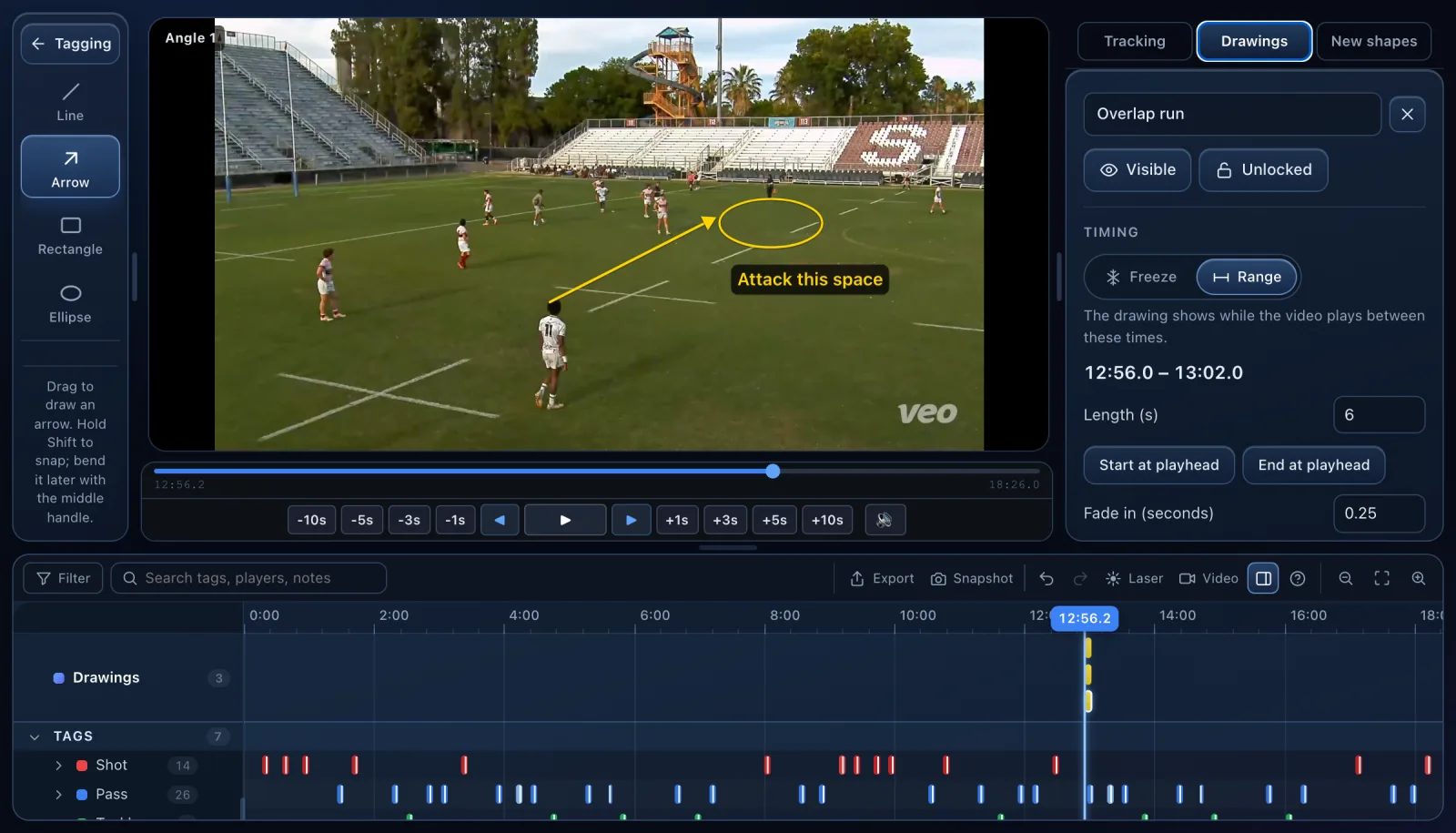
The telestration editor opens from Settings, so the tagging view stays exactly as you know it. Tools sit on the left, the video in the middle, the selected drawing's settings on the right, and a timeline of your events along the bottom. Every panel can be resized, and the right panel folds away.
The drawing tools
Pen, highlighter, line, arrow, box, ellipse, text and eraser, plus a Select tool for moving and reshaping what you've drawn. Each tool has a keyboard shortcut (A for arrow, P for pen, V for select), and every change can be undone and redone one step at a time.
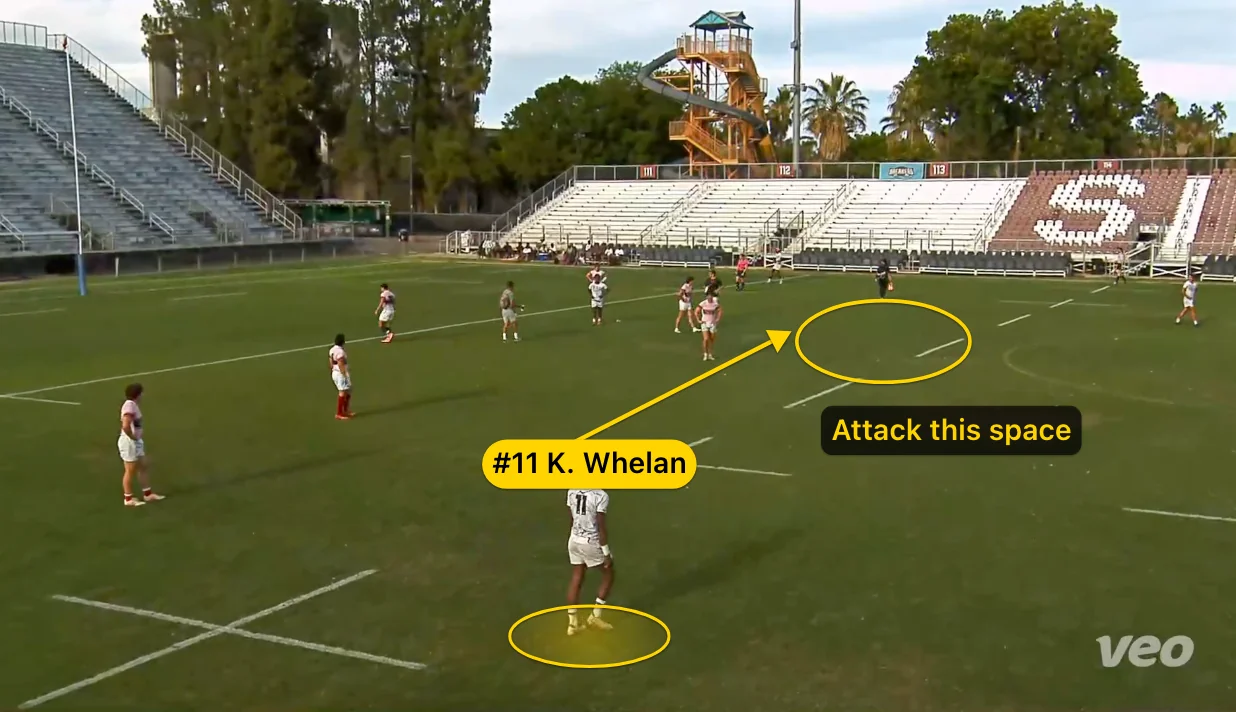
Freeze or range
Every drawing has a timing:
- Freeze stops the video on a frame and holds it for a set number of seconds, like a broadcast replay, then plays on.
- Range keeps the video playing and shows the drawing over that stretch, fading in and out.
You can switch any drawing between the two later.
Play a whole lane
Click the name of any lane on the timeline and its clips play back to back: every lineout, every shot, or every touch by one player, with your drawings on top. You can also filter the timeline by tag, team or player.
Presets
Select a group of shapes and save it as a preset, such as a back three, a defensive line or a pressing trap. Next time, place the whole group with one click. Presets are yours and work across every session.
Multiple camera angles
With more than one camera angle loaded, each angle has its own drawings, so you can mark up the tight angle and the wide angle separately.
Laser pointer for live sessions
Hold L (or press the Laser button) and a red trail follows your pointer across the video and fades away. It's never saved or exported, so it's perfect for pointing things out while you talk. In a Collaborative Collection session, everyone else sees your trail too, even in the tagging view.
Collaborative telestration
Drawings sync to everyone in a collaborative session. An analyst can mark up clips while the coach watches them appear, or two staff can split the work on the same match.
Exporting Telestrated Clips and Snapshots
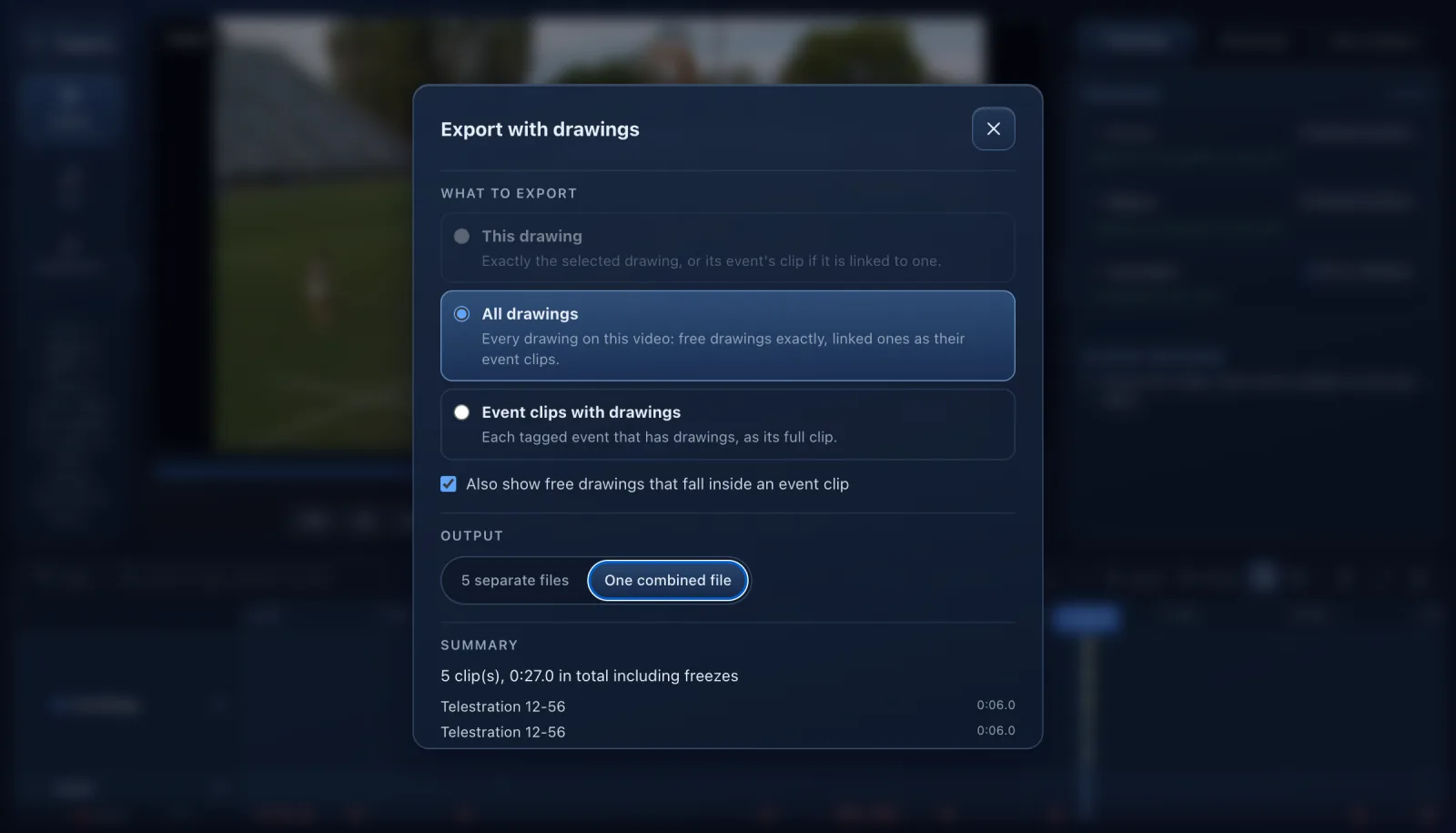
Once you've finished marking up a clip, you can export it with the drawings included. This means the player doesn't need STAT-Tag open to see what you've highlighted. From the telestration editor you can export:
- A single drawing
- Every drawing in the session
- Every event clip that has drawings
as separate files or one combined video. Freezes hold the frame with silent audio, then the clip plays on, just like a TV replay.
For slides, team talks or a quick message to a player, Snapshot saves the current frame and its drawings as a PNG. Shift-click saves just the drawings on a transparent background, ready to drop onto your own graphics.
A Rugby Example: From Tag to Telestrated Clip
Here's an illustrative example. A club analyst tags Saturday's match as usual: carries, tackles, lineouts and turnovers, each credited to a player.
On Sunday, the stats show four missed tackles in the same channel. In the telestration editor, they filter the timeline to Tackle Missed, play the lane, and see the same pattern each time: the inside defender drifting early and leaving a gap.
They draw a ring round the defender, an arrow for the drift, and a shaded zone for the gap, then save the group as a preset and drop it onto the other three clips. The analyst exports the clips into a short video for Tuesday's defence session and saves a snapshot to share with the team on WhatsApp.
The workflow is the same in other sports, only the patterns change:
- Football: pressing triggers, passing lanes and runs in behind.
- Gaelic games: kickout setups, support runs and defensive shape.
- Hockey: circle entries, marking and press structures.
- Basketball: screens, rotations and spacing.
Getting Started With Telestration
A few habits make telestration much more effective:
- Keep it simple. One or two shapes per clip. If the frame is covered in drawings, the point gets lost.
- Use colour consistently. Pick a colour for each idea and stick to it.
- Freeze for teaching, range for flow. Freeze when you need players to absorb a picture, and use range when the movement itself is the lesson.
- Start from your data. Let the stats tell you which clips are worth drawing on, rather than drawing on everything.
- Build presets for recurring shapes. Your defensive line or set-piece structure shouldn't need redrawing every week.
Frequently Asked Questions
What is telestration in sports? Telestration is drawing on top of match video: arrows for runs, rings round players, shaded zones and short notes. It's the same technique TV pundits use to break down a play, applied to your own footage so coaches can show players exactly what happened and why.
What are the benefits of telestration for coaches? Telestration turns a clip into an explanation. Players see the space, the run or the mistake instead of being told about it, review sessions get shorter and clearer, and the same drawn clip can be shared with players who weren't in the room.
Do I need separate software for telestration? Usually, yes. Telestration has traditionally lived in a separate tool from tagging and stats, which means exporting clips from one program and importing them into another. STAT-Tag builds telestration into the same app you tag and analyse in, so your drawings sit directly on your tagged events.
Can I export telestrated clips? Yes. In STAT-Tag you can export a single drawing, every drawing, or every event clip that has drawings, as separate files or one combined video. You can also save a snapshot of any frame with its drawings as a PNG for slides or messages.
Is telestration included in STAT-Tag? Telestration is part of STAT-Tag Pro, which costs $199 a year on the annual plan. There is a free 10-day Pro trial, so you can try the telestration editor on your own footage before subscribing.
Making Telestration Part of Your Review
Telestration gives coaches a way to explain what happened in a match without relying entirely on verbal explanations. You can highlight a player's movement, show where space opened up or demonstrate how a defensive line broke down.
The easier it is to get from a tagged event to an annotated clip, the more likely you are to use it regularly. Keeping tagging, stats and telestration together in STAT-Tag means you don't have to move clips between different programs to do that.
Looking for the full picture on analysis platforms? Read our guide to the best Sportscode alternatives, or see how to tag matches on your phone from the sideline.
Try STAT-Tag Telestration Free
Start a free 10-day trial of STAT-Tag Pro and draw on your next match:
- Arrows, rings, zones, lines and text on your own footage
- Freeze-frame or range drawings, just like a TV breakdown
- Drawings linked straight to your tagged events
- Play every clip in a lane back to back with drawings on top
- Reusable presets for your team's shapes
- Telestrated clip exports and PNG snapshots
- Live laser pointer and collaborative drawing
Tagging, analysis and telestration, all in one app.