Phone Video Analysis: How to Tag Matches on Your Phone
Last updated: October 2026.
Traditional video analysis software was built for the analysis room: a laptop, a big screen and time to sit down with the footage. Match day looks very different. Coaches are on the sideline, often without a laptop.
That gap is why phone video analysis has gone from a novelty to a genuine way of working. Volunteer coaches at amateur clubs, school staff looking after several teams and academy analysts travelling to away fixtures all face a similar problem. They need to record what happens and attach it to the right player while it's still fresh, so they can give feedback straight away: at half-time, during a break in play or on the walk off the pitch.
This guide covers what a good phone video analysis app needs to do and how tagging on a phone works in practice.
What to Look for in a Phone Video Analysis App
Using a phone on the sideline is different from analysing a match at your desk. You've got less screen space, less time and usually something else going on around you. The app needs to make tagging quick, without making you fight the interface.
Quick tagging. You need to be able to record an event without navigating through several menus. On the sideline, you don't have time to fiddle with your phone while play continues.
Timestamps that don't depend on speed. The moment you record should be the moment the event happened, not the moment you finished choosing what it was.
It works without footage. At grassroots level there often isn't a camera. You should still be able to tag live and add the video later if it turns up.
Player attribution. Counting tackles is useful. Knowing who made them is what makes the review session worthwhile.
Your own tags. Rugby, football, hurling and basketball need completely different events. Fixed templates rarely fit.
A route to a bigger screen. The phone is perfect for capture. Detailed review, clip cutting and exports are easier on a laptop, so moving a session between the two should be painless.
Easy to get started. Anyone helping out on match day should be able to open the app and start tagging without a long setup or a training session.
How Tagging on Your Phone Works in STAT-Tag
STAT-Tag has a dedicated mobile layout that puts one thing on screen at a time. Every event is the same short sequence: press TAG, say who it was, say what happened.
1. Press TAG
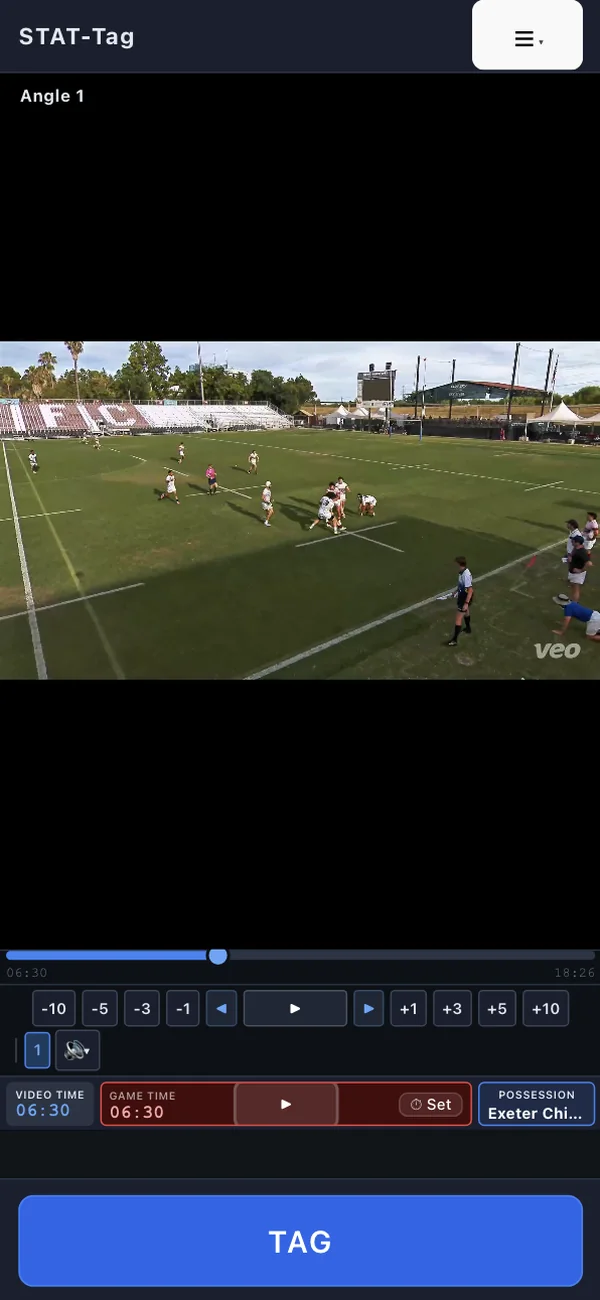
The video sits at the top of the screen with a single large TAG button below it. Press it the instant you see something happen. That press is the timestamp, so you can take as long as you need over the next two screens and the event will still land at the right moment. The video keeps playing behind you while you choose.
2. Pick the player
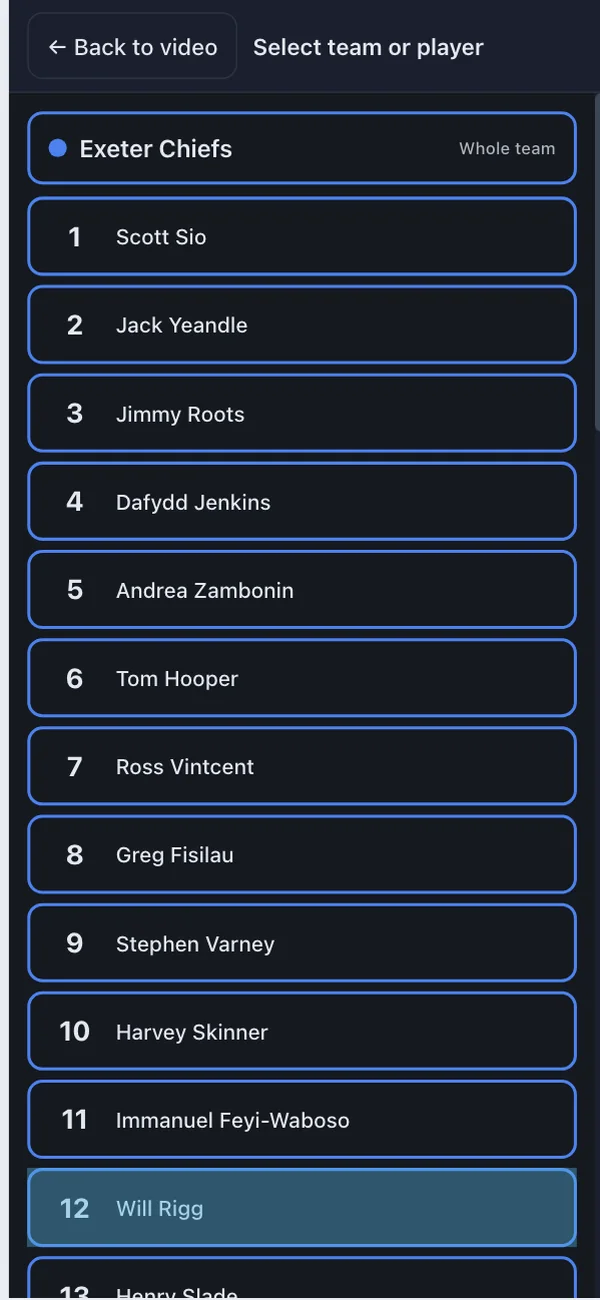
Both squads are listed. Tap a player, or tap a team name to credit the whole team rather than an individual. The player you picked last stays highlighted so you can find them quickly, but you still choose a player for every event, so nothing gets credited to the wrong person by default.
3. Pick the tag
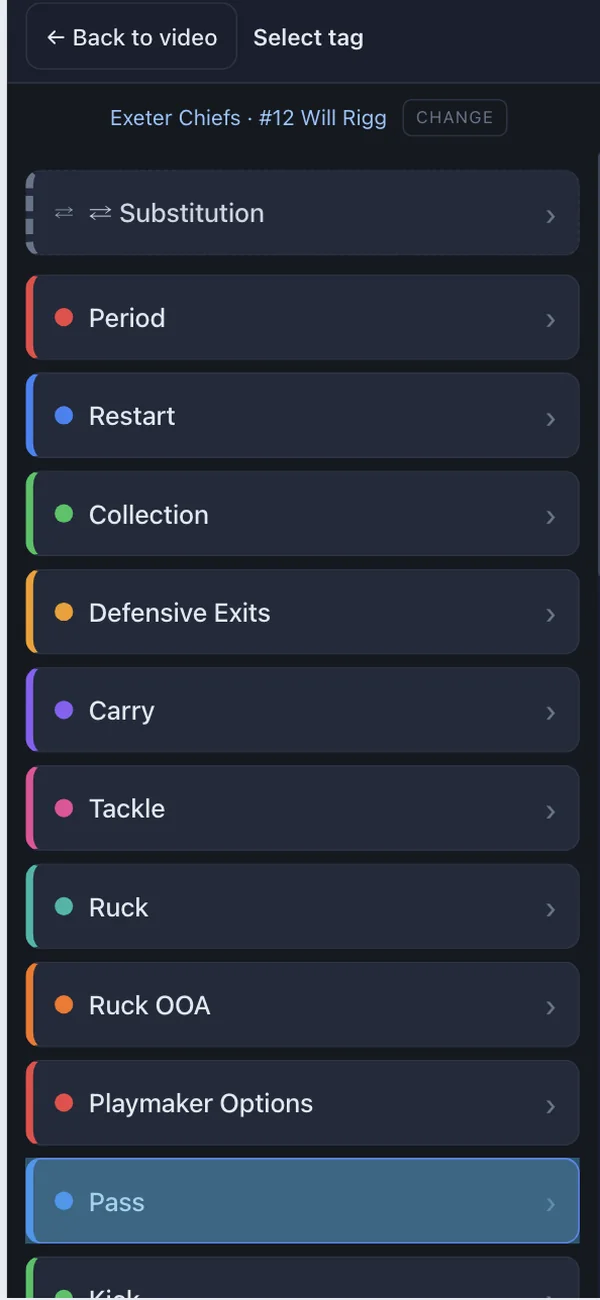
Every tag in your set appears as a row. Tap the one that fits. Rows with sub-tags drill in a level, so "Lineout" can open into "Won clean", "Won scrappy" and "Lost". If the detail doesn't matter in the moment, Create Event Here records the event at the level you have reached and drops you back on the video.
Park a tag mid-thought
Sometimes play moves on before you have finished. Press Back to video and the half-finished tag is parked above the video. Resume picks it up exactly where you left off, and the event is still stamped at the moment you first pressed TAG. Discard throws it away without writing anything to the timeline.
Coordinates and substitutions
If your session tracks pitch position, the mobile flow adds a step to place the event on the field, which you can skip when you're short on time. You can also make substitutions from your phone, so the players listed as on the pitch stay up to date as the match goes on.
Tagging Live With No Video
Not every grassroots team has someone filming the match. That doesn't mean you can't collect useful performance data.
With no footage loaded, the video panel becomes a match-clock timeline. Stand on the touchline, start the clock, and tag what you see as it happens. You come away with a complete event log: who carried, who tackled, where the turnovers came from, how many penalties you gave away and when.
If someone films the match on their phone or the club's camera, load the footage afterwards and line it up. The events you tagged live now have video behind them.
Getting Footage onto Your Phone
When you do have video, there are a few ways in:
- A video file straight off your phone's camera roll
- A link to a hosted video
- A YouTube URL, handy for streamed or uploaded matches
- A live camera feed, recorded as you tag
You can load more than one source and switch between them, or line two up as camera angles of the same match.
Reviewing Your Data on the Phone
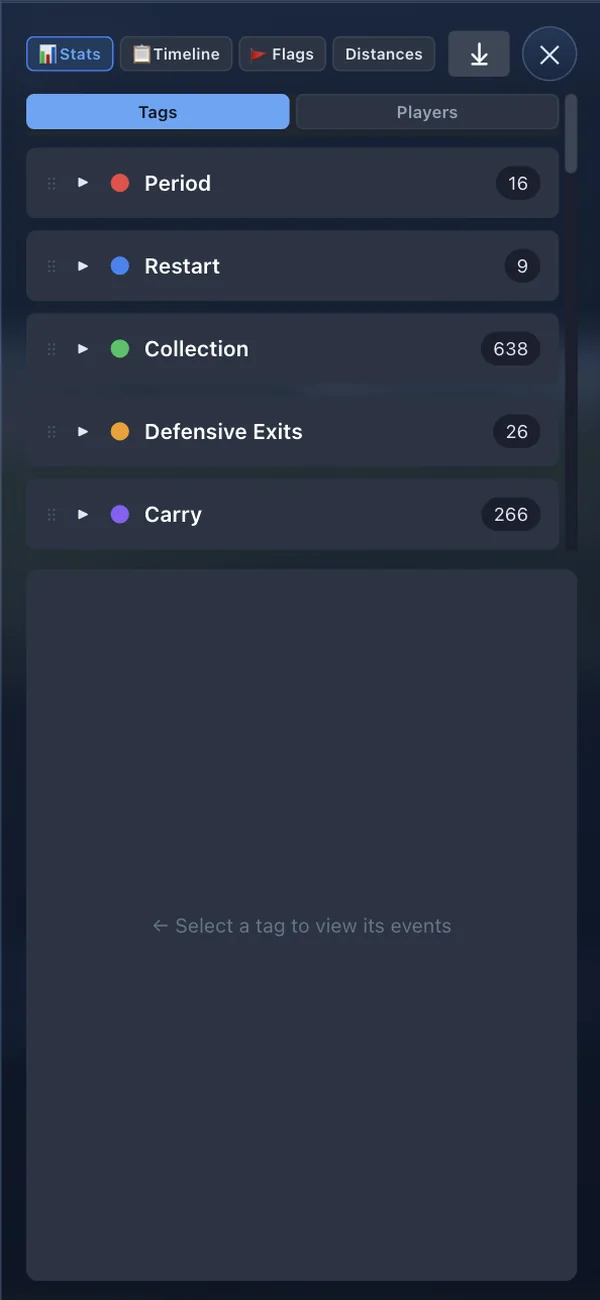
Everything beyond tagging lives in the ☰ menu, and each screen opens full size so it gets the whole display:
- Timeline: every event, sortable and filterable. Tap one to jump the video to that moment.
- Stats: team and player totals, ready for a half-time chat.
- Flags: automated checks that pick out patterns and likely tagging mistakes.
- Distances: how far events moved up or down the pitch, if you are tracking coordinates.
You also build and reorder your own tags here. STAT-Tag starts with an empty tag list, because every sport and every coaching team tracks different things. You build the tags you need and put the ones you use most at the top.
Phone on the Sideline, Laptop in the Stand
With Collaborative Collection, someone on the sideline with a phone and a coach or analyst on a laptop can tag the same match at the same time. Every event either of you records appears for both, live, and is saved on both devices.
A common split: the person on the phone tags the quick, obvious events (tackles, carries, set-piece outcomes) while the laptop handles the detail work.
An Example Workflow: Rugby From the Touchline
Here's an illustrative example of how this might look for a club rugby side with one volunteer analyst and no camera crew.
Before the match, they build a short tag set on their phone: Carry, Tackle (Made / Missed), Lineout (Won / Lost), Scrum (Won / Lost), Penalty Conceded, Turnover Won. Each name is short, because they will be reading it at speed.
During the match, they tag from the touchline. Press TAG, tap the player, tap the tag. A missed tackle on the far side takes three taps and about two seconds. When a breakdown gets messy and they can't see who conceded the penalty, they park the tag, keep watching until the referee's signal makes it clear, then resume and finish it.
At half-time, the Stats screen shows the coach that six of the eight missed tackles came down one channel. That's a conversation that would otherwise have waited until Tuesday.
Rugby is just one example. The events you track will obviously depend on the sport and what the coaching staff want to review:
- Football: shots, entries into the final third, turnovers and set pieces, credited to the player.
- Gaelic games: kickouts won and lost, scores and wides, turnovers.
- Hockey: circle entries, penalty corners and turnovers.
- Basketball: shot outcomes, rebounds and turnovers by player.
Tag Live on the Sideline, Add the Detail Later on Desktop
During the match, speed is what matters, so capture the essentials on the phone: who, what and when. After the match, open the same session on a laptop and add the depth that is hard to do on a small screen in the cold: place events precisely on the pitch, add notes, split broad tags into more specific sub-tags, cut clips with lead and lag time, and export the data for a deeper look.
You can move the session across with Settings ▸ Import / Export, or skip that step entirely by running Collaborative Collection so the laptop already has every event the phone recorded. You end up with the match events recorded as they happen, without needing to bring a laptop to the sideline. You can do the more detailed analysis when you're back at your desk.
To be upfront about it, a few things do stay on the desktop: laying out the tag grid in rows and columns, keyboard shortcuts, and coordinates-only tagging mode. None of these affect your match data, and you can switch between the mobile and desktop layouts at any time from the ☰ menu with your session coming with you.
Frequently Asked Questions
Can I do proper video analysis on my phone? Yes. A phone is enough to tag events live, assign them to players, attach them to video and review the stats afterwards. STAT-Tag's mobile layout runs the same workspace as the desktop version, so the data you collect on a phone is the same data you would collect on a laptop.
Does STAT-Tag work on iPhone and Android? Yes. STAT-Tag runs in the browser, so it works on iPhone, iPad and Android phones without an app store download. It's also a progressive web app (PWA), so you can install it to your home screen and open it from there in full screen, without going through the browser each time.
How do I install STAT-Tag on my phone? On iPhone, open stat-tag.net in Safari, tap the Share button, then Add to Home Screen. On Android, open it in Chrome, tap the ⋮ menu, then Install app. STAT-Tag then opens from your home screen in full screen, like any other app on your phone. Our guide to progressive web apps explains how this works and why it helps on match day.
Do I need to film the match to tag it on my phone? No. With no video loaded, STAT-Tag tags against a match-clock timeline, so you can stand on the touchline and record what you see as it happens. You can add the footage later and the events line up with it.
Can a coach and an analyst tag the same match at once? Yes. Collaborative Collection, part of STAT-Tag Pro, lets someone on the sideline with a phone and someone on a laptop tag the same match together. Every event either of you records shows up for both, live.
Is there a free phone video analysis app? STAT-Tag has a free plan that covers the whole analysis workspace on mobile and desktop, including custom tags, player attribution and stats. The Pro plan adds exports, imports, video trimming and real-time collaboration, and there is a free 10-day Pro trial.
Getting Started on the Sideline
You don't need a full analysis setup to start collecting useful match data. A phone, a sensible set of tags and someone willing to record events from the sideline are enough to get started. The detailed work can come afterwards.
If you're still weighing up which platform to use overall, our guide to the best Sportscode alternatives compares the main options side by side.
Try STAT-Tag Free
Start a free 10-day trial of STAT-Tag Pro and tag your next match from your phone:
- Tag live from the sideline in three taps
- Assign every event to a player or the whole team
- Tag with no footage, then add the video later
- Build your own tags for any sport
- Check stats, flags and distances at half-time
- Tag the same match with a coach on a laptop, live
- Pick the session up on desktop for clips and exports
Works on iPhone and Android through your browser. There's nothing to download from an app store.